Add quizzes and action buttons to a video
On Ultimate and Enterprise, add clickable buttons, quizzes, and polls to your video, then publish it and review viewer responses.
Written By Anish Muppalaneni
Last updated 10 days ago
Read before this
Before you start
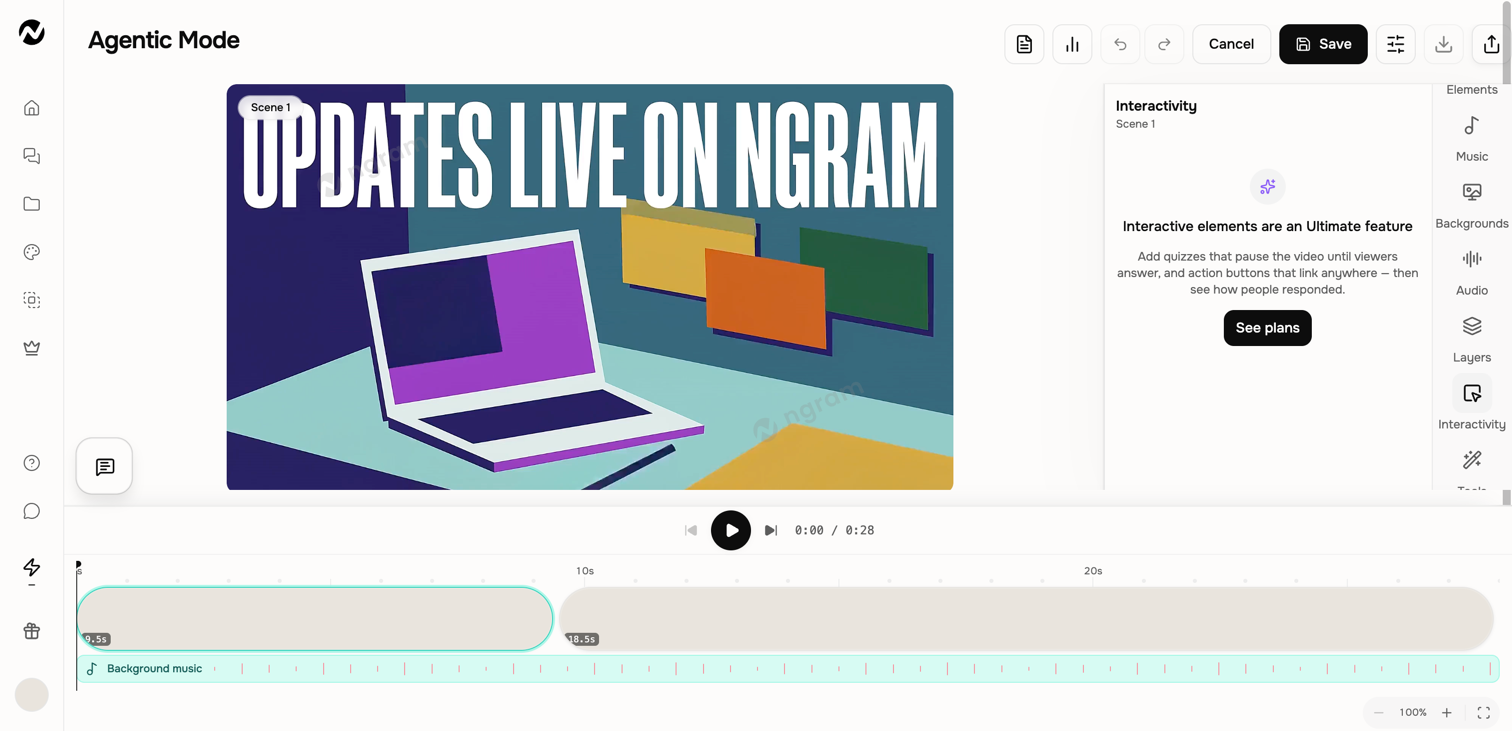
On Ultimate or Enterprise, open a finished video you own in the editing workspace. Choose the scene and decide whether viewers should answer a quiz, respond to a poll, or follow a clickable button.
Choose the interaction
- Quiz: displays a question and pauses playback until the viewer responds.
- Action button: overlays a timed link or CTA without pausing the video.
- Poll: invite viewers to choose an answer and share their response in the hosted or embedded player.
Add and publish an interaction
- Open an owned finished video on desktop and turn on Edit.
- Select the scene, open Interactivity, and choose Quiz or Action button.
- Enter the question and answers or the button label and destination, then set the visible timing options.
- Save the edit and play through the scene to test its timing and behavior.
- Publish the video, or update the published version, so the draft interaction becomes live.
- Open the public link in a separate viewer session and complete the interaction once. If the video is embedded on another site, test that player too; quizzes and action buttons can collect responses from the cross-origin embed.
Review results
Open Analytics for the published interactive video to inspect the viewer and response information currently shown. Keep this separate from generic project view counts: the documented analytics apply to the interactive experience and its responses.
If viewers do not see the change
Confirm the edit was saved and the published video was updated after the change. Test the public link rather than only the editor preview. If the interaction still does not appear, contact Support with the project URL, scene number, interaction type, and approximate publish time.
Keep going
- Edit inside an agentic conversation — Edit scene content, layers, media, audio, interactivity, and timing inside a conversation.
- Share, embed, publish, and update a video — Use the current Share control and understand the curated Made with Ngram gallery.
- Understand plans and pricing — Review current Free, Basic, Premium, Ultimate, and Enterprise plan behavior.
- Use Help and contact Support — Choose the right help channel and include useful, privacy-safe diagnostic details.
Continue in ngram
Open the relevant Studio surface and follow the current controls shown in your account.
Was this helpful?
Still need help? Ask the team