Choose a voice and avatar
Choose a voice and, when available, a presenter before creating a video. Change them later from Video settings in the conversation.
Written By Rishikesh from ngram
Last updated 4 days ago
Read before this
Before you start
Decide the spoken language, tone, and whether you want an on-screen presenter. Prepare pronunciations for names and specialist terms. Use only custom voice recordings and face images you own or have permission to use. Available voices and presenters depend on the selected model and your account.
Choose a voice in ngram
On Home, choose Prompt to video, then use Voice and Presenter in the video setup. You can keep Auto for a voice, choose No voiceover, or select from the voices available to your account. Presenter choices depend on the selected model.
Review the credit estimate for your selected settings before creating. Google narration is available on Free; ElevenLabs narration requires Basic or higher. Custom voice and custom face creation have their own plan limits in the linked guides.
- Open Home and choose Prompt to video.
- Choose Voice to search, filter, and preview available voices; select one or keep Auto.
- Choose Presenter to select an available character or keep None.
- Review the selections in the video setup, then choose Create video. Review the proposed plan before approving production.
Choose Conversation for a scripted exchange
Select Conversation style, then name the speakers and their roles in Video brief. Give each a clear purpose and supply the approved facts. Review the dialogue before generation; request changes by speaker name or role. This creates a video for viewers to watch, rather than a live avatar that answers them.
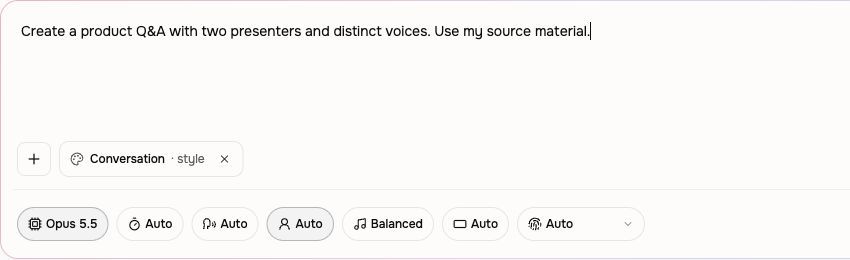
After creation, open Video settings in the active conversation to change the voice or presenter for a later revision, then send the suggested change request. Check the credit estimate before sending. Review pronunciation and narration in the result, and ask for a correction in chat if needed.
Check the finished video
Play the opening and a section with names or specialist terms. Check the language, pronunciation, delivery, and which speaker says each line. For Conversation videos, check each speaker separately.
Correct a voice or pronunciation
- Open the project conversation and identify the scene or timestamp that needs a change.
- For a voice or presenter change, open Video settings, choose the new selection, and review the suggested change request. For pronunciation or language, describe the correction in chat, including the exact words and intended pronunciation.
- Review the credit estimate before sending the request, then play the affected scene in the new result.
- If the same problem remains, contact Support with the project URL, affected timestamp, intended voice or language, and visible error.
Custom voices and faces
Use Create voice in the Voice panel to set up a custom voice when your plan includes it. See the custom voice and custom face guides below for preparation and plan requirements.
Emphasize words behind a presenter
Choose Depth Captions for a large on-screen presenter, or upload your own talking-head recording and request the effect. Name the key words to emphasize and the source speech to keep. Ordinary captions stay separate and can be turned on when wanted.
Voice and language FAQ
How do I choose a specific language or accent?
Open Voice in the video setup. Use the language filter, preview the available voices, and select the delivery you want. Include the spoken language in your brief and check the first result.
Can I change the voice or language after the video is generated?
Yes. Open Video settings in the project conversation to select a different voice, then send the suggested change request. For a language change, describe the language you want in chat. Review the credit estimate before sending.
How do I fix a name that is pronounced incorrectly?
Tell ngram which name or term needs correcting, give its intended pronunciation, and identify the affected scene or timestamp. Review the credit estimate, request the correction, and replay that section.
How do I create a conversation with multiple speakers?
Choose Conversation under Start from a style. Name the speakers and their roles in Video brief, provide the facts they should cover, and review their dialogue in the plan. Describe additional voices or presenters in the brief.
Why does my finished video use the wrong voice?
Check the chosen voice and the speaker assigned to the line. Request a correction for the affected scene and replay it. If the problem remains, contact Support with the project URL and timestamp.
Why won’t a voice preview play?
Check that browser audio is enabled and try one other available preview. If previews still do not play, contact Support with your browser, the approximate time, and any visible error.
Keep going
- Create and manage a custom voice — Create, preview, use, and remove custom voice models with current plan limits.
- Create and manage a custom face — Create, use, and remove custom presenter faces with current plan limits.
- Choose a video type — Choose a style, model, and presenter setup for your video.
- Adjust music, voiceover, captions, and sound — Change captions, background music, narration, and sound-effect settings.
- Translate, dub, or transcribe existing media — Choose a localized video, replacement voice track, or transcript workflow.
- Use Help and contact Support — Choose the right help channel and include useful, privacy-safe diagnostic details.
Continue in ngram
Open the relevant Studio surface and follow the current controls shown in your account.
Was this helpful?
Still need help? Ask the team