Create your first video
Start in ngram with a brief and sources. Review the plan, then refine and share your video.
Written By Rishikesh from ngram
Last updated 4 days ago
Read before this
ngram turns a brief and optional sources into a video you can review and revise. Start a new video from Home, or reopen existing work from Projects.
Before you start
Sign in and check that you have credits available. Prepare a short brief with an audience, a main message, and the action you want viewers to take. Add only source material you have permission to use. Base generation rates are 3 credits per second for ngram-flash and 10 for premium video models. On Free, you can create one premium video per calendar month (UTC), up to 60 seconds, using your credits. After using that allowance, choose ngram-flash or upgrade to Basic or higher for another premium video.
Create the video
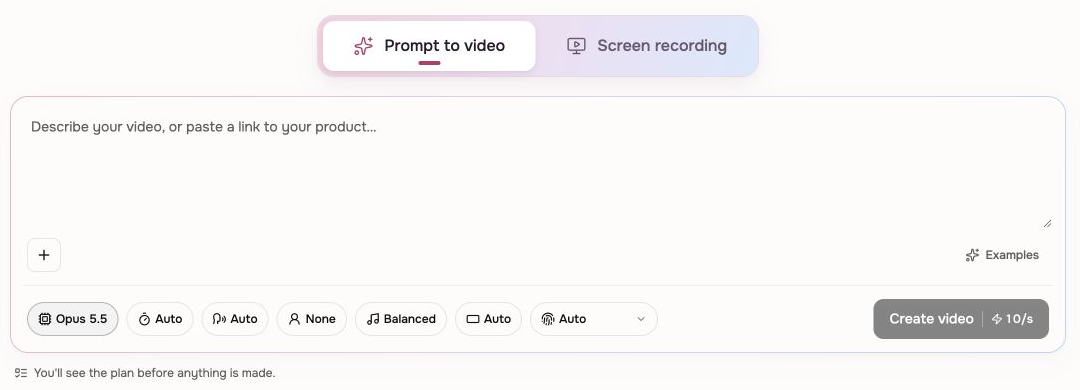
- Open Home and choose Prompt to video.
- Write your brief in Video brief. Choose Add files if the video needs source material.
- Review Model, Length, Voice, Presenter, Pace, Format, and Brand. Pick a style from Start from a style when you have a visual direction.
- Choose Create video. The setup shows the estimated credits before generation.
- If your model prepares a plan, read its script and production details. Request changes if a fact, visual direction, or section is wrong. ngram-flash starts production directly.
- When Approve plan is offered, choose it after the plan matches your brief and you have reviewed the estimate.
- Play the preview. Use chat or Make changes for revisions; changes may consume credits.
- Share a public watch link on any plan, or choose Download on a paid plan when the selected video is ready. If Preparing download appears, wait for the MP4 to finish rendering.
Check the result
Replay the opening, factual claims, and final call to action. Enable captions when a caption track is available and you want it included. The conversation saves your work so you can return to it from Projects.
If progress stops
A plan waiting for approval needs your response. Read the last conversation message before retrying a failed run. Keep the same conversation open while production or download preparation is active so you do not create a duplicate.
Find your existing projects and continue editing
Choose a format for the explanation
Choose Conversation for distinct speaking roles, Depth Captions for emphasis behind a large presenter, or Machine anatomy for moving parts and technical cutaways. If your brief needs actual screens behind sign-in, ask to browse the product and complete the browser handoff when prompted.
Make a walkthrough with browser handoff
Keep going
- Write a better video prompt — Write prompts that produce stronger scripts, visuals, pacing, and revisions.
- Use sources and attachments — Add permitted files and tell ngram which facts and visuals to use.
- Revise a generated video — Choose between chat revisions, frame-specific requests, inline editing, and a full-editor copy.
- Share, embed, publish, and update a video — Use Share to choose how viewers can access the finished video.
Continue in ngram
Open the relevant Studio surface and follow the current controls shown in your account.
Was this helpful?
Still need help? Ask the team